Solved: My PC is slow at startup
By Renee | 13/Jun/2026
Almost every Windows PC users would suffer from the slow startup—slow enough that they can have the coffee beans grounded and make four cups of them before the PC is ready. However, this is not going to mention buying a new machine as it’s an obvious solution. In this article, we shall solve Windows PC slow startup issues so that you do not have to wait too long for your computer to respond.
Methods to Solve Slow Startup
Method One Use Windows tool
Step 1 Run Disk Cleanup
Windows PC long boot time is also the result of the stuffed hard disk. To remove the temp files, duplicated files and other useless system files is an unnecessary step.
->Open Start menu and type disk cleanup in.
->Choose the disk to clean. Wait to analyze and then delete the unwanted files.
Step 2 Tweak your BIOS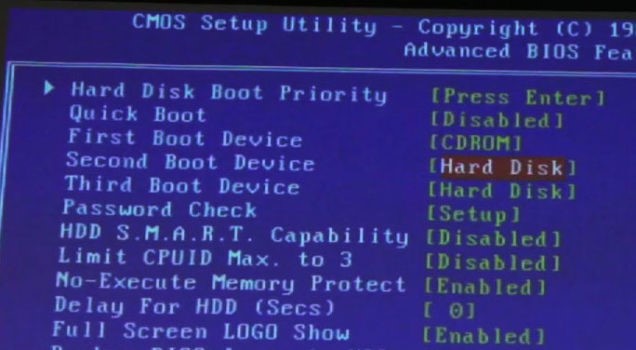
BIOS (Basic Input/Output System) is a set of computer instructions in the firmware that control input and output operations. When you start up your PC, you can hold Del key and then turn on Quick Boot option and move your hard disk to the top of the boot priority list. This will turn off tests that your computer handles while booting up and help you fix Windows PC slow startup issue.
Step 3 Reduce Startup Programs
Too many programs that start up automatically when booting up will consume the speed of your PC. To disable them, you can:
->Open Start menu, type Startup in and press enter. (Or, open Task Manager and find Startup tab)
->Select programs and disable.
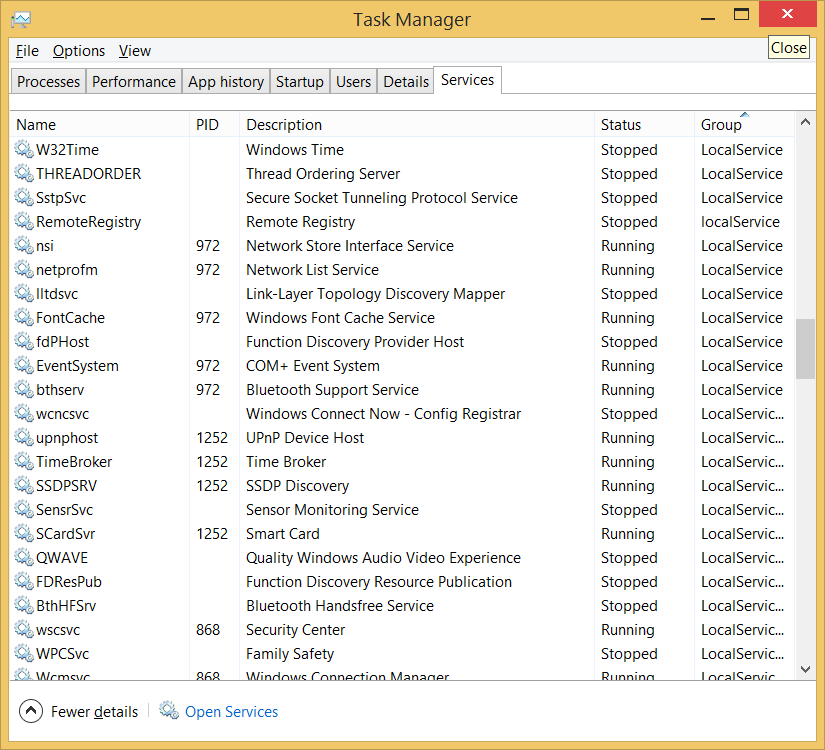
Step 4 Optimize Windows Service
Windows service is actually a type of computer program that runs in the background. You can disable some of them and then open the essential ones when the computer is ready to go.
-> Open Task Manager and find Services tab, disable the services that you can sure it won’t impact the startup.
Method Two Use Startup Manager to Fix Slow Boot Easily
If you try to use Method One to help you fix “my PC is slow at startup” problem and find it hard, you can employ the Method Two to achieve the same result.
Step 1 Open the main console of your Neptune SystemCare Ultimate.
Step 2 Have a PC Checkup with one click and Fix after.
This is a cleanup magic to sweep off all the junk files and registry errors to make sure to diminish the bad impact of system clutters.
Step 3 Run Startup Manager
To identify which programs and services should be disabled is a bit complicated and easily wrong, which might end up with a disability of PC normally running. With Startup Manager in Neptune SystemCare Ultimate, you can find out exactly what these unknown startup programs and services are doing. Based on the specific time costing and star ratings, you can easily identify, modify, delete programs, or restore the one that is falsely disabled with easy clicks.

What’s more, if you do not want to do it yourself, you can just go to the Speedup tab and optimize the startup items as recommended with one click.
That is the method you can reduce waiting time on the Windows flash. If it is so, you could try these steps and check the results. Tell us about the results and experience you gain from it on Twitter or Facebook. We would love to learn.