How to fix PC running slow after Windows 10 update
By Renee | 19/Aug/2026
The basic hardware requirements to install Windows 10 are the same as for Windows 8.1 and Windows 8, and only slightly higher than Windows 7. And thus, many users updated to Windows 10 Update, attempting to enjoy improved PC performance and faster Windows experience.
However, the truth that PC is running slow after Windows 10 Update has frustrated many users these days. The PC becomes slower after Update with typical features like slow PC startup, hanging applications, input reaction lags, the computer freezes randomly, high CPU usage, loading times much longer and more. If you are trying to fix the slowness and want a quicker boost in speed, cleaner system storage, optimized settings and more PC speed up solution, you should download and installed Neptune SystemCare Ultimate to fix PC running slow problem after Windows 10 update.
Clean out for more disk space
When your hard disk almost runs out of the memory space, Windows 10 would cost much more time to access files or programs and thus slows down.
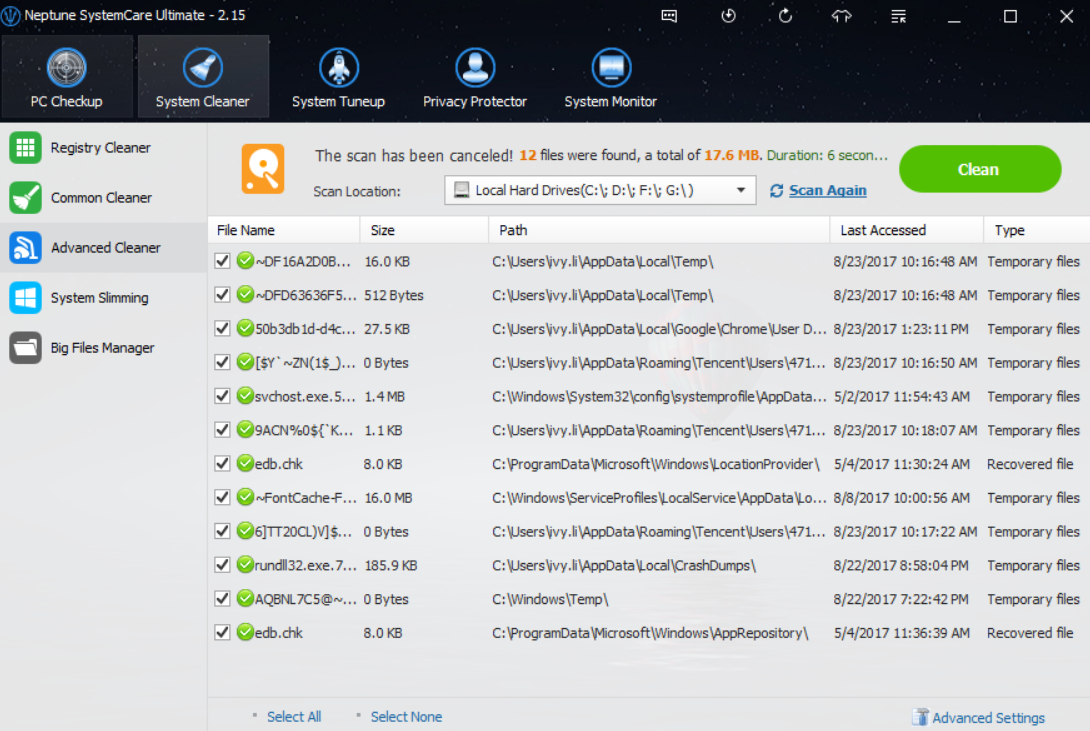
Step 1 Use Advanced Cleaner to clean out more useless files
Step 2 Use Big File Manager to sweep off the big and unwanted files
Big File Manager would help you scan and display the file that takes up most of your hard disk resources so that you can erase these dump files within a few clicks.
Optimize Startup Programs and Services
With lots of startup items, your Windows 10 PC will take a long time to startup, because all these programs need time to start and continue to run in the background after, which may use up CPU or other resources and thus make the Windows 10 run with great efforts.
Step Use Startup Manager to erase the items smartly
Startup Manager in Neptune SystemCare Ultimate would list each program's name as well as its publisher, services and function, whether it's enabled to run on startup, and its Boot time, which is how much it slows down Windows 10 when the system boots up.
Defragment Hard Drives
If the hard disk is with a lot of fragments, it will do much extra work to access the files, which slows Windows PC.
Step Use Disk Defragmenter tool
Disk Defrag offers a disk fragmentation map, a list of fragmented files and health data for your hard disk. Disk Defrag sees a much higher fragmentation than Windows Disk Defragmenter because it evaluates more files than the Windows tool.
Remove Junkware
Unwanted software or the one that has bundled apps could be the cause of slow PC performance. Uninstall them and see if your PC runs faster or not.
Step Go to Programs and Features to uninstall the useless apps.
Restore to the Previous Build to Fix Slow PC Trouble
If all the above efforts come out of avail, you can recover your previous build to get rid of the slow Windows 10.
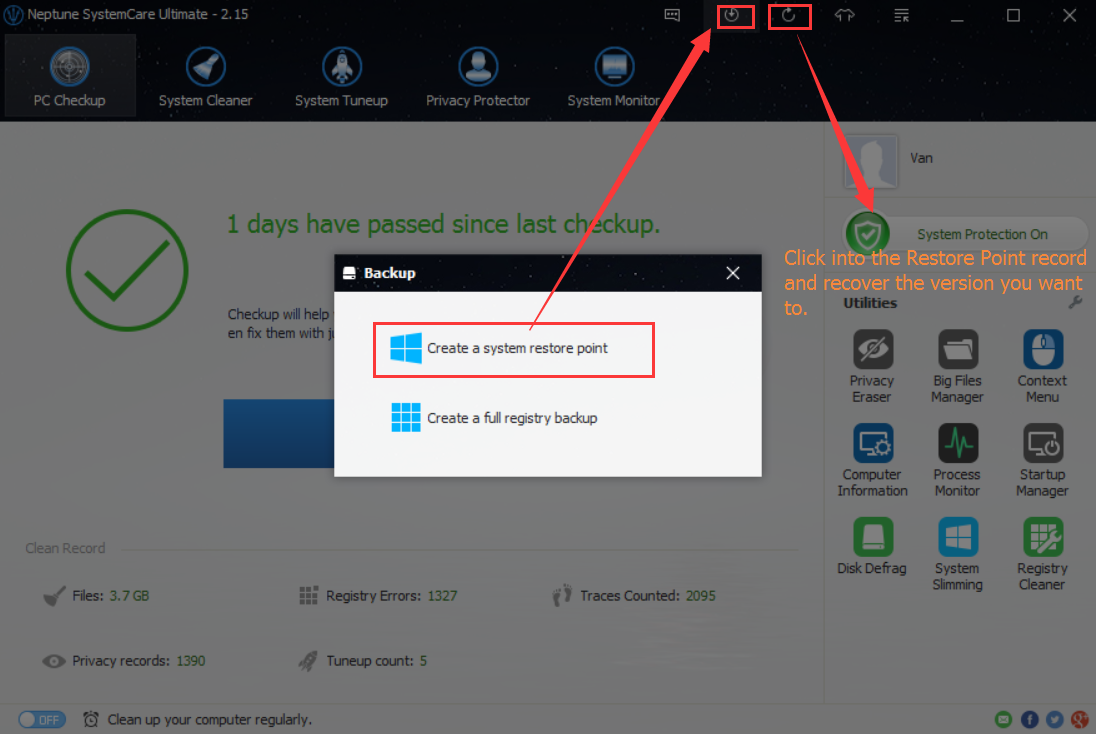
Step Open Neptune SystemCare Ultimate
On the top of the interface, you can see a list of buttons. The second button is for creating a restore point, and the third one is for recovering from the restored version.