How do you run a smart defrag to optimize your Windows hard drive
By Renee | 19/Aug/2026
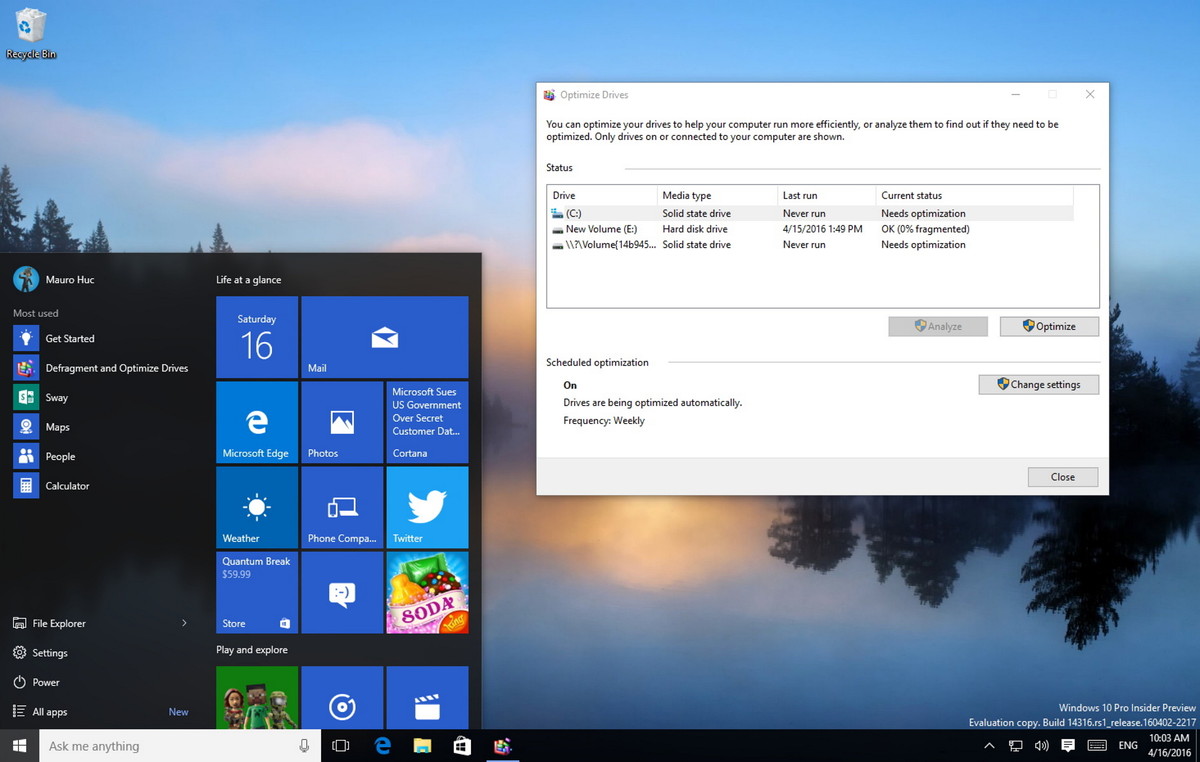
Defragmenting your hard drive regularly is an important part of hard drive maintenance and optimization of your Windows PC, particular for the power users and heavy media users, who are frequently adding and removing large files from their systems with constant application installation & removal cycles, and media downloads & deletions. Run a smart defrag on Windows PC can speed up your drive for daily use or on demand when your games start to slow down or you have trouble loading up large files.
Every system has a need for periodic defragmentation of the file system. When you defragment the hard drive, all fragments of files are moved to contiguous clusters. This makes it easy for Windows to read the files and the computer starts working faster.
Windows gets built-in tool Disk Cleanup to Windows remove cached and temporary files from your PC and schedule the proper optimization for each one. But you may also want to consider installing a more advanced and smart defrag of Neptune SystemCare Ultimate with extra optimization function, with which you can improve other Windows 10 performance at the same time.
How to use Optimize Drives on Windows 10
1. Open Start and type Defragment and Optimize Drives and press Enter.
2. Select the hard drive you want to optimize and click Analyze.
Defragmenting the system drive (C: ) is essential. However, if you experience long load times while accessing the files stored in other partitions of the hard disk, you can defragment them as well.
3. Once the process complete, the current status should display "0% fragmented".
How to defrag Windows using Smart Disk Defragmenter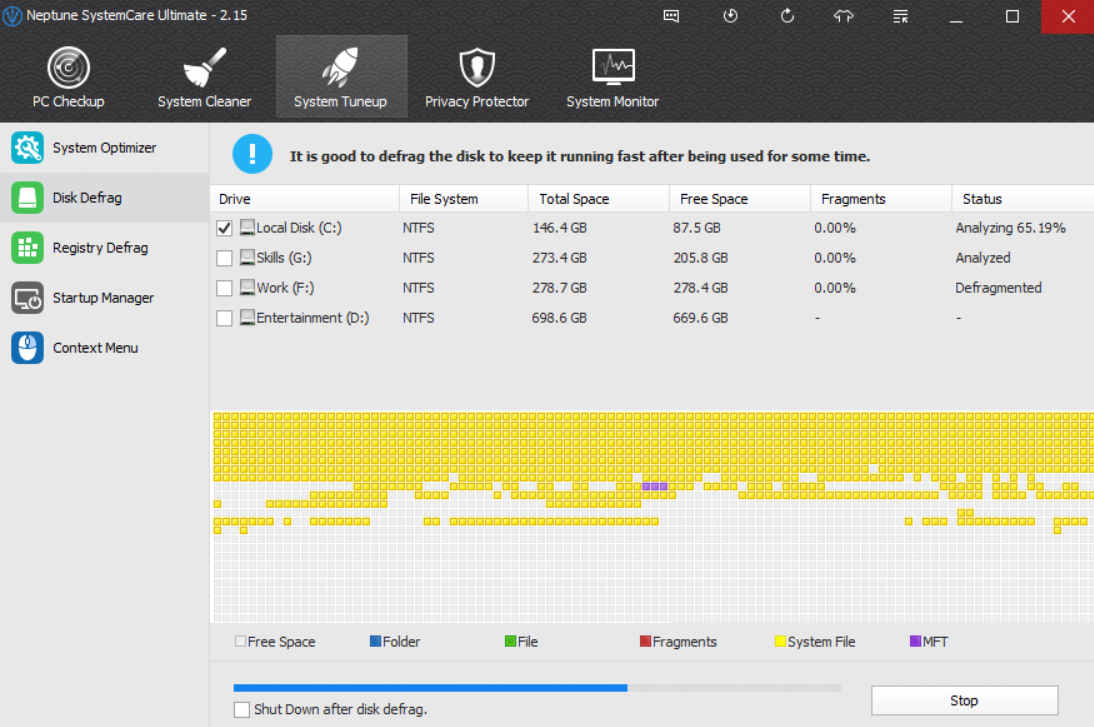
1. Open Neptune SystemCare Ultimate and click the System Tuneup tab.
2. Choose the hard disk or all of them and then click on the green Defragment button. Wait a few seconds for the analyzing and defragmenting.
3. Done.
It seems that Neptune SystemCare Ultimate is easier and faster way to smart-defrag Windows. You do not have to manual intervention a lot or schedule the mission unless you are paranoid and try to confirm that fragmentation is holding steady at 0 percent.