5 ways to fix dns probe finished no internet
By Livia | 19/Aug/2026
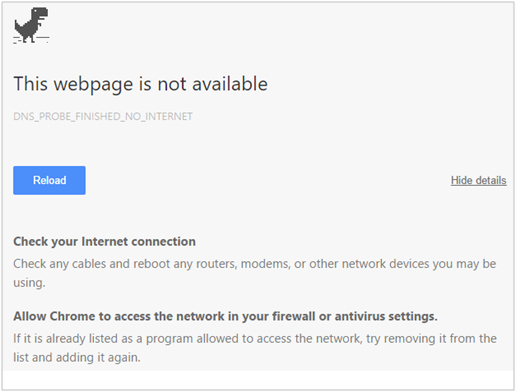
Most of Internet users will face to the note that comes from the search engines like Google chrome or Firefox: “This webpage is not available” error on the front page. It means the error code DNS_PROBE_FINISHED_NO_INTERNET or DNS PROBE FINISHED NO INTERNET happens in your Google Chrome and Internet connection. In this article we will use 5 common useful ways to fix dns probe finished no internet or in your Google chrome browser, which are suitable for Windows 7, Windows 8, Windows 8.1, and Windows 10.
Way1 to fix dns probe finished no internet
Fix dns probe finished no internet with CMD Admin as well as follow the relevant commands are the well known and proved method. The article dns probe finished no internet will give you the details of how to open CMD Admin. It is suitable for the most of windows users in most in dns probe no internet situation. After you finished doing the commands below, you just need to reboot your Windows computer.
ipconfig /release
ipconfig /all
ipconfig /flushdns
ipconfig /renew
netsh int ip set dns
netsh winsock reset
Way2 to fix dns probe finished no internet
Turning your DNS address to open DNS can be the second way to fix dns probe finished no internet. Now follow the steps below to fix dns probe finished no internet with DNS address.
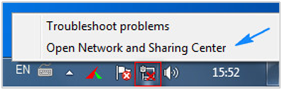
Step1. Open windows task bar, right click the network icon then tap 'Network and Sharing Center'.
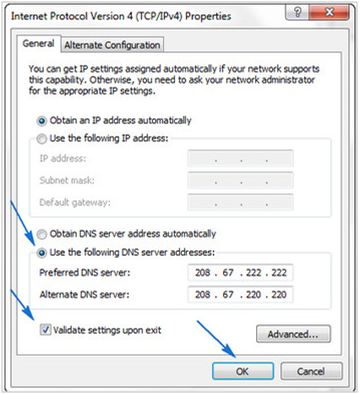
Step2. Find and click "Local Area Connection"->"Properties"->"Internet Protocol Version 4" -> hit "Properties"again->"Use the following DNS server addresses"-> type 208.67.222.222 in preferred DNS server box->type 208.67.220.220 in alternate DNS server box->check "Validate settings upon exit"->click OK. Then you can reopen the same website to see if it works.
Way3 to fix dns probe finished no internet
The third alternative way for you to fix DNS probe finished no internet is by changing the TCP/IP4 Proxy with 4 steps. Now let`s see how to make it.
Step1. Right click "Start", then choose Network Connection.
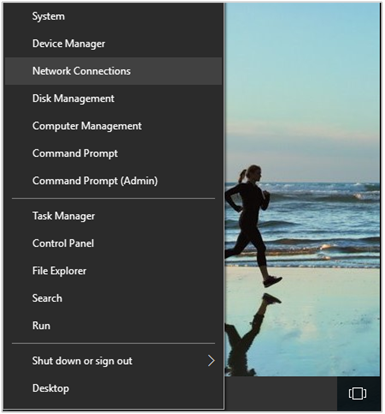
Step2. Right click "active Network connection" then choose Properties.
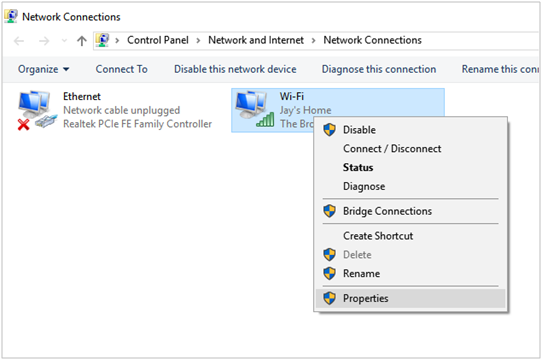
Step3. Choose Internet Protocol Version 4 (TCP/IPv4), then tap Properties.
Step4. Take the servers and alternate DNS addresses below. Then do the same last step as the way 2.
Preferred DNS Server: 8.8.8.8
Alternate DNS Server: 8.8.4.4
Way4 to fix dns probe finished no internet
Many of Internet users also choose to clear the Cache and cookies, uninstall and reinstall the browser to fix DNS probe finished no internet issue. Here you can have 2 options and taking the Neptune advanced systemcare pro key is a highly recommended one. It can erase your browser search history and cookies to keep your internet privacy confidential and identity anonymous freely. With the several easy clicks you can clear the Cache and cookies in a quickly way.
You can also make it by following the steps below in your browser, we take chrome as an example:
Click on the Customize and control button-> tap settings-> choose Show Advanced Settings->Tap Clear Browsing Data-> look for Cookies and Other site and Plugin Data->Clcick Clear browsing data.
Here we have introduced you 4 common ways to fix the situation of dns probe finished no internet. Besides, you can choose to restart your Internet router by logging in the website of your Internet server with the admin username and password, commonly, the default username and password is: admin. Then just click System Tools > Reboot then click the reboot button.
Hope these 5 ways can help you to deal with dns probe finished no internet successfully.